
Automatic scheduling on Instagram, Facebook and LinkedIn
Set up the connections so the post goes out by itself at the scheduled time.
Quick answerConnect the networks to your brand, schedule in the Calendar and BestContent publishes by itself on the date and time you chose. Today, Instagram, Facebook and LinkedIn are supported.
How it works
1Connect the networks
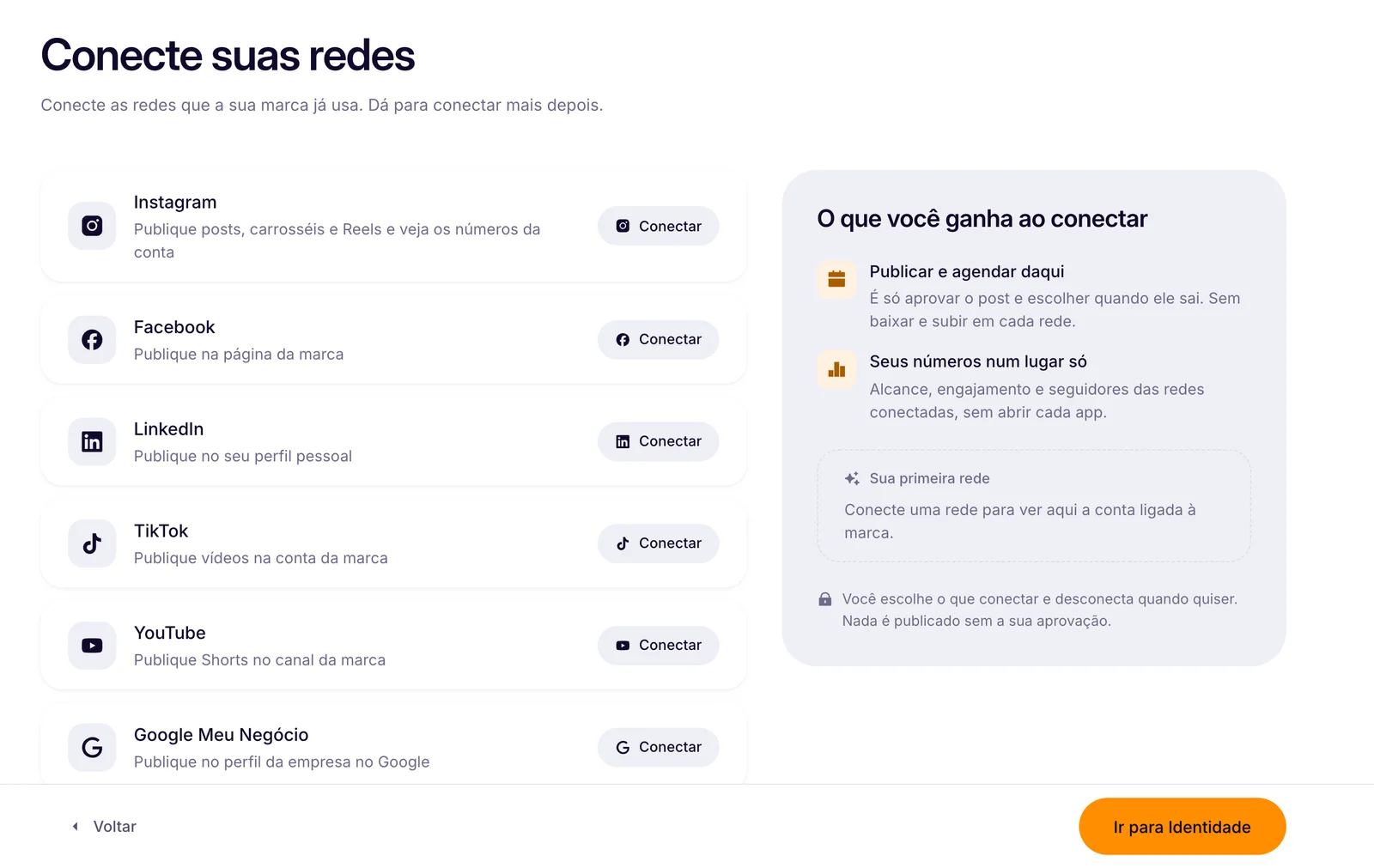
At the top of the side menu, click the pencil Edit <your brand>. In the brand editor, go to step 2. Networks. Click Connect on the network.
2Schedule
In the Calendar, create the plan with date, time and networks.
See the guide: How to schedule your posts3Follow along
The status in the calendar changes when the post goes out.
Available networks
- Instagram: posts, carousels and Reels.
- Facebook: on your brand page.
- LinkedIn: on your personal profile.
- TikTok, YouTube and Google Business Profile: coming soon.
If publishing fails
- Open the brand editor and check the connection under Networks.
- Disconnect and connect again if the authorization expired.
- Check that the account still has the required permissions.
- Schedule again in the Calendar.
How to know it worked
- The post shows on the day you chose.
- The status changes from scheduled to published.
Related guides
Calendar and schedulingHow to schedule your postsSocial networksHow to connect InstagramSocial networksHow to connect Facebook
Was this page helpful?
Your answer helps us improve this guide.

Still have questions?
Contact support. Have your account email at hand.