
How to disconnect your networks
Remove a network from your brand or redo a connection that expired.

Quick answerIn the brand editor, in the Networks step, click Disconnect on the network. To fix an expired authorization, disconnect and connect again.
Before you disconnect
Posts already scheduled on that network fail and are not published, for security. Check the Calendar and, if needed, connect the new account and schedule again.
Step by step
1Open the Networks step
At the top of the side menu, click the pencil Edit <your brand>. In the brand editor, go to step 2. Networks.
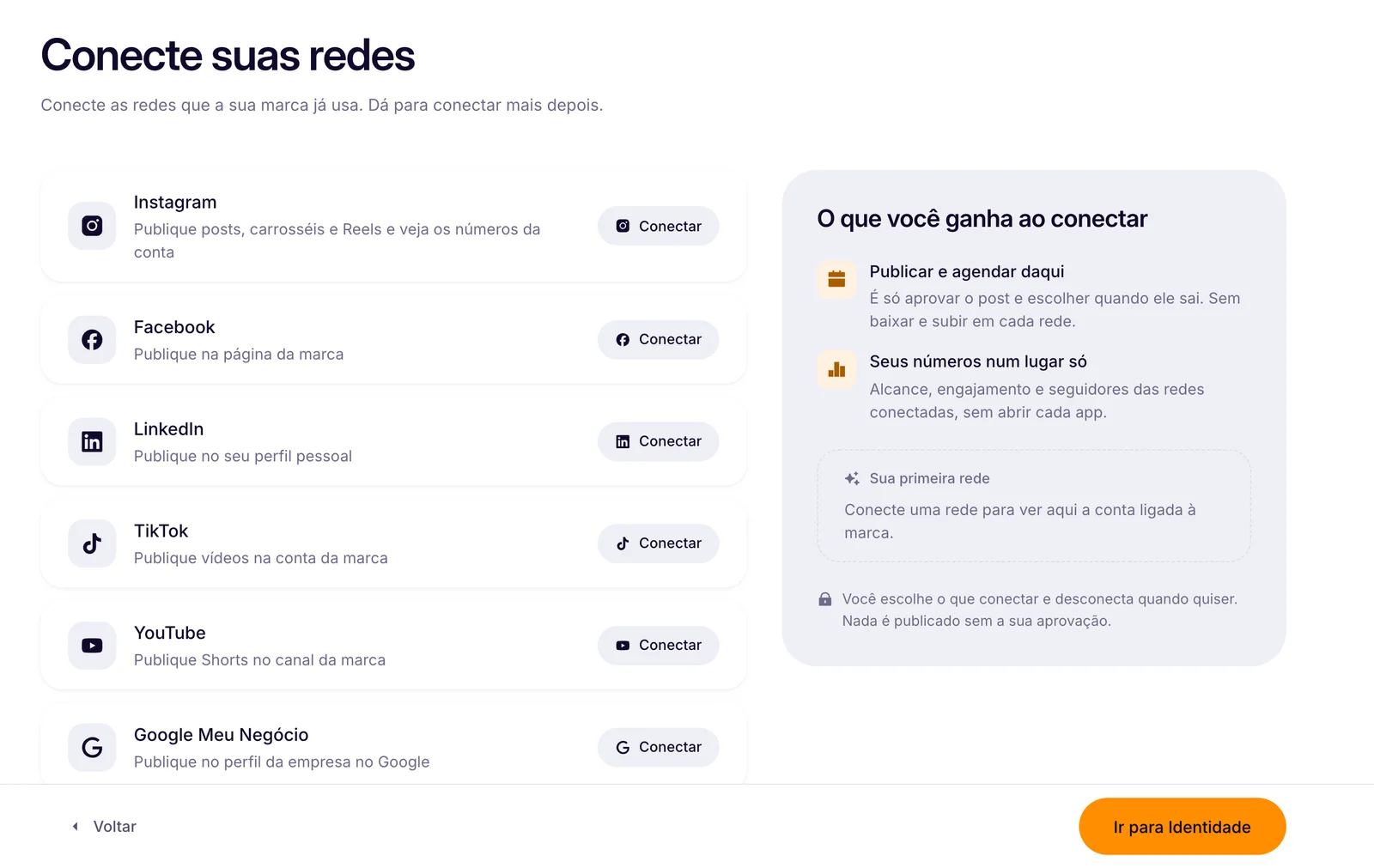
2Click Disconnect
On the connected network's row. It disconnects right away, without asking for confirmation.
How to know it worked
- The network shows the Connect button again.
If something doesn't go as expected
- Review the permissions you accepted when logging in to the network.
- Disconnect the old connection before trying again.
- Check that your account still has access to the page or profile.
Related guides
Was this page helpful?
Your answer helps us improve this guide.

Still have questions?
Contact support. Have your account email at hand.