
Adding and organizing your links
Add websites, videos and contacts to a page that is easy to navigate.

Quick answerClick Add Link, choose the type, fill in the title and destination, save, and order the links by priority for your audience.
Step by step
1Open BestLinks
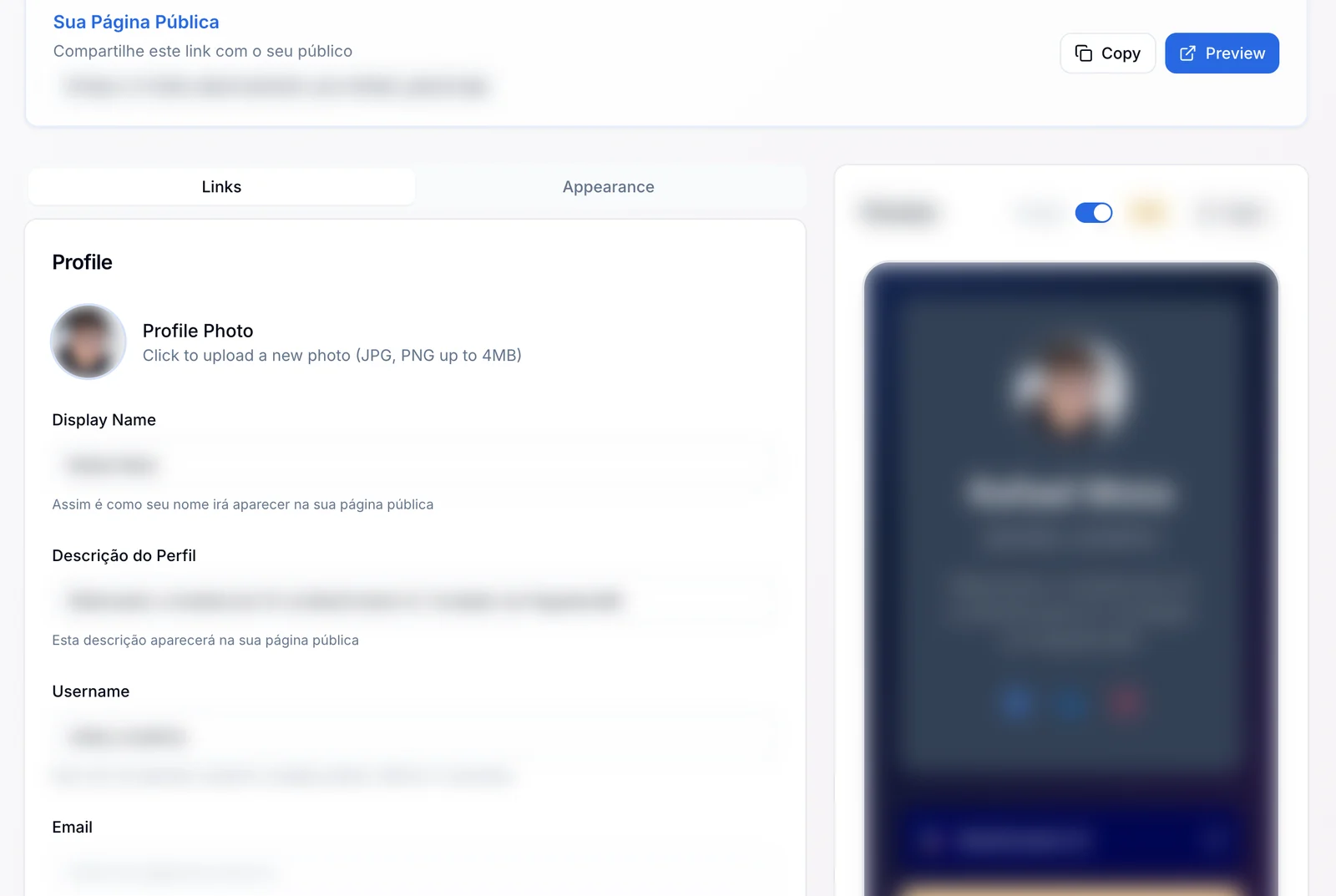
In the Links tab, scroll down to the list of links.
2Click Add Link
Choose the type: Standard Link, YouTube Video, WhatsApp Button, Email Button or Image Grid.
3Write a short title
Say clearly where the button leads.
4Fill in the destination
Website addresses start with https://.
5Save and test
Check the button in the Preview.
Organize the page
- The most important action first: buy, book or talk to the team.
- Direct titles, with no two buttons meaning the same thing.
- Remove old links that no longer work.
- Check the order on desktop and on mobile.
WhatsApp
Include the country code and the area code. If there is an opening message, keep it to one short sentence.
Free plan
On the free plan, the page can have up to 5 links.
How to know it worked
- The preview shows the right order.
- Every button opens the right destination on your phone.
If something doesn't go as expected
- Check that every address starts with https://.
- Save the change that did not show up again.
- Open the public page in a private window.
Related guides
Was this page helpful?
Your answer helps us improve this guide.

Still have questions?
Contact support. Have your account email at hand.