Complete guide: create and customize your BestLinks
Build your brand's link page, make it look like you and add it to your bio.

Before you start
- List the destinations that will go on the page.
- Decide which action comes first.
- Have your brand photo, name and colors ready.
How to open it
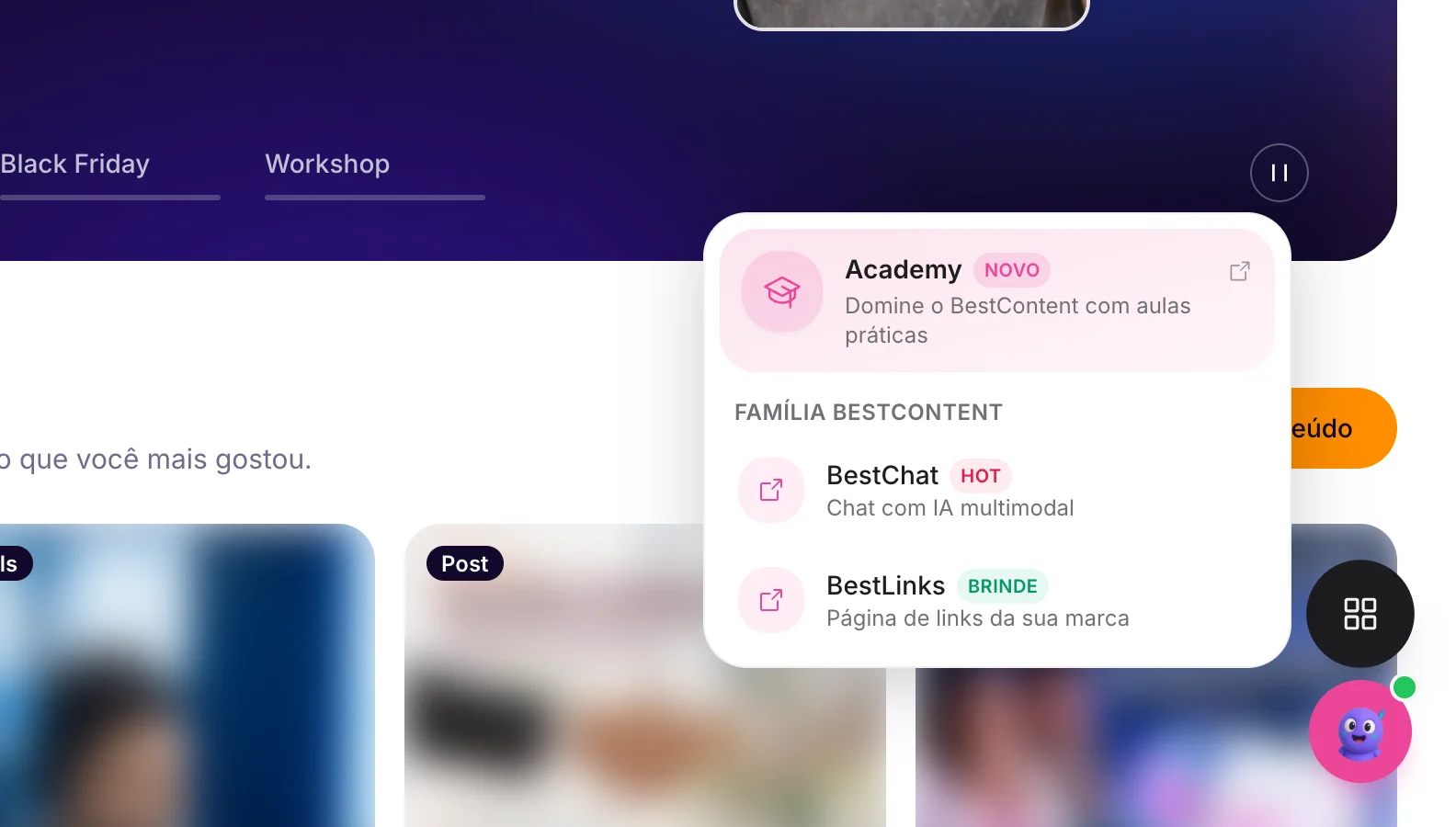
1Open the app switcher
In Social 2.0, click the grid button and choose BestLinks (Bonus). Or go to links.bestcontent.ai.
Build the page
1Fill in the profile
In the Links tab, under Profile, upload your photo (JPG or PNG up to 4 MB) and fill in the name and description.
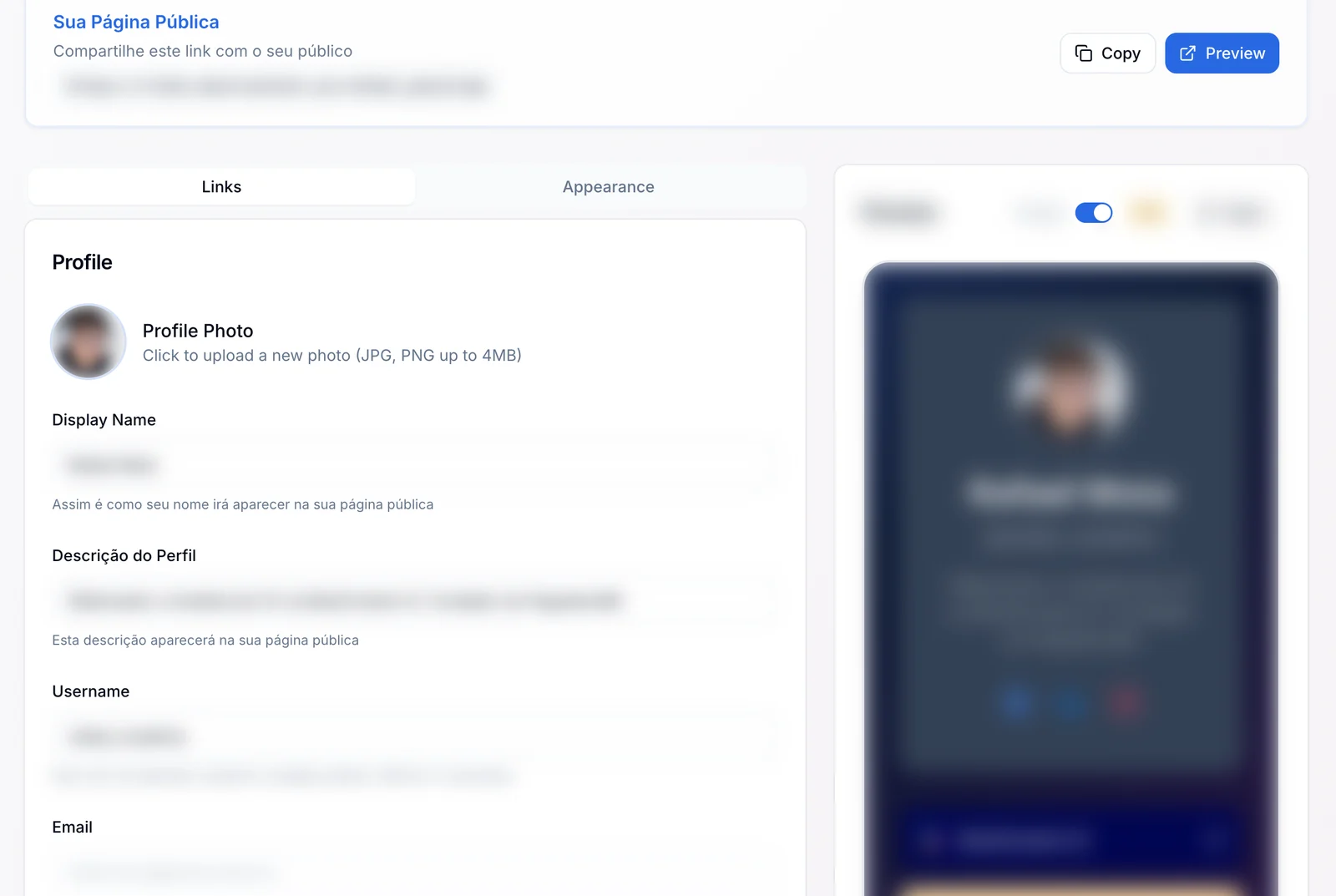
2Choose the username
It becomes the public address of the page.
3Add the links
Click Add Link and add the destinations, from most to least important.
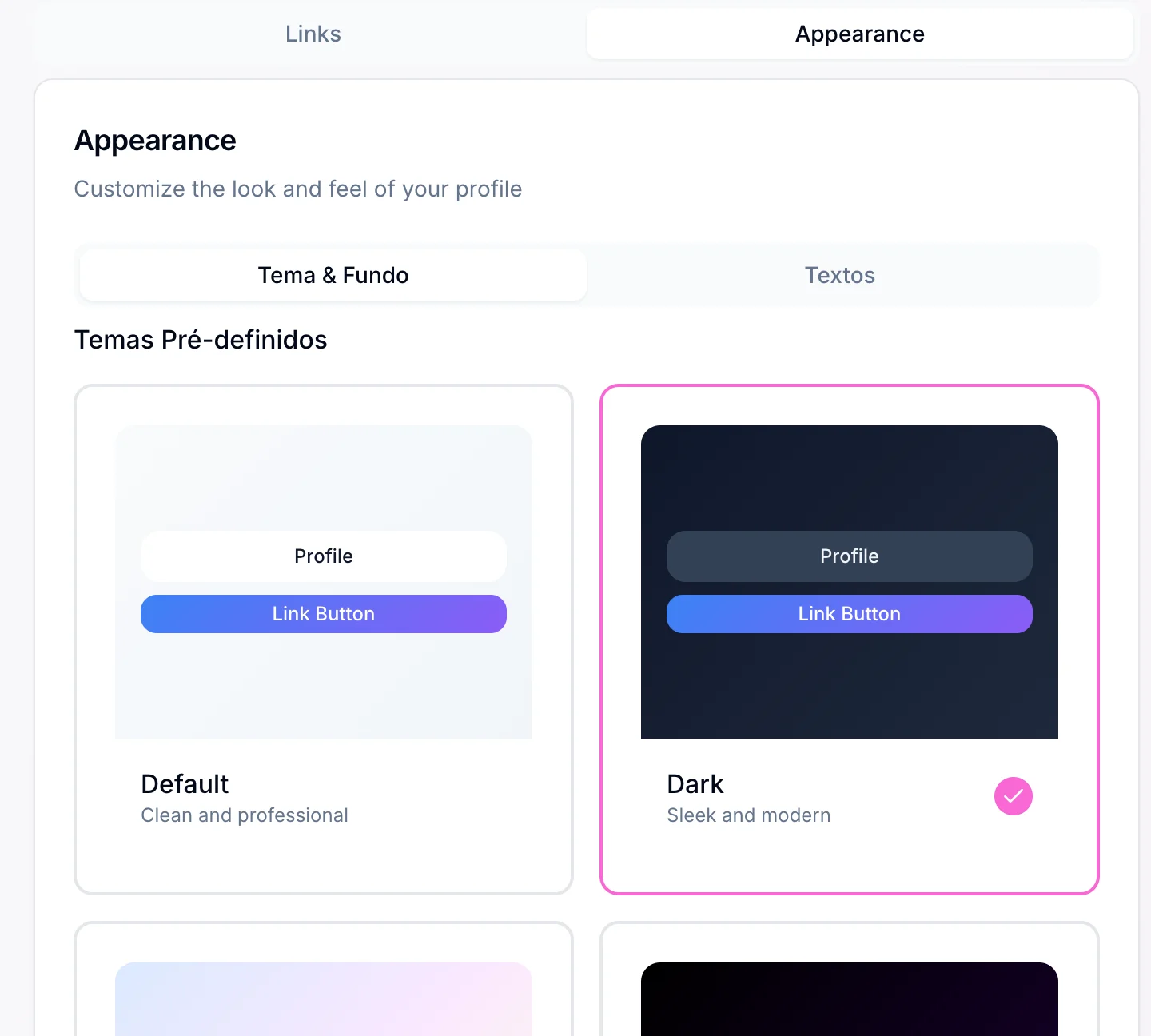
4Choose the look
In the Appearance tab, choose a ready-made theme, such as Default or Dark.
5Test and share
Click Preview to see the page and Copy to copy the link.
Track the results
In Analytics, in the side menu, see the views and clicks of each link.
Open the link in a private window on your phone and test every button.
How to know it worked
- The preview shows the order and the look you want.
- Every button opens the right destination on your phone.
If something doesn't go as expected
- Check that every address starts with https://.
- Save the change that did not show up again.
- Open the public page in a private window.
Related guides
Your answer helps us improve this guide.

Contact support. Have your account email at hand.