
Customizing buttons and themes
Adjust colors, fonts and background so the page looks like your brand.

Quick answerIn the Appearance tab, choose a theme under Theme & Background and adjust the texts under Texts. To highlight a button, configure just that one.
Apply a theme and background
1Open Appearance
In BestLinks, click the Appearance tab.
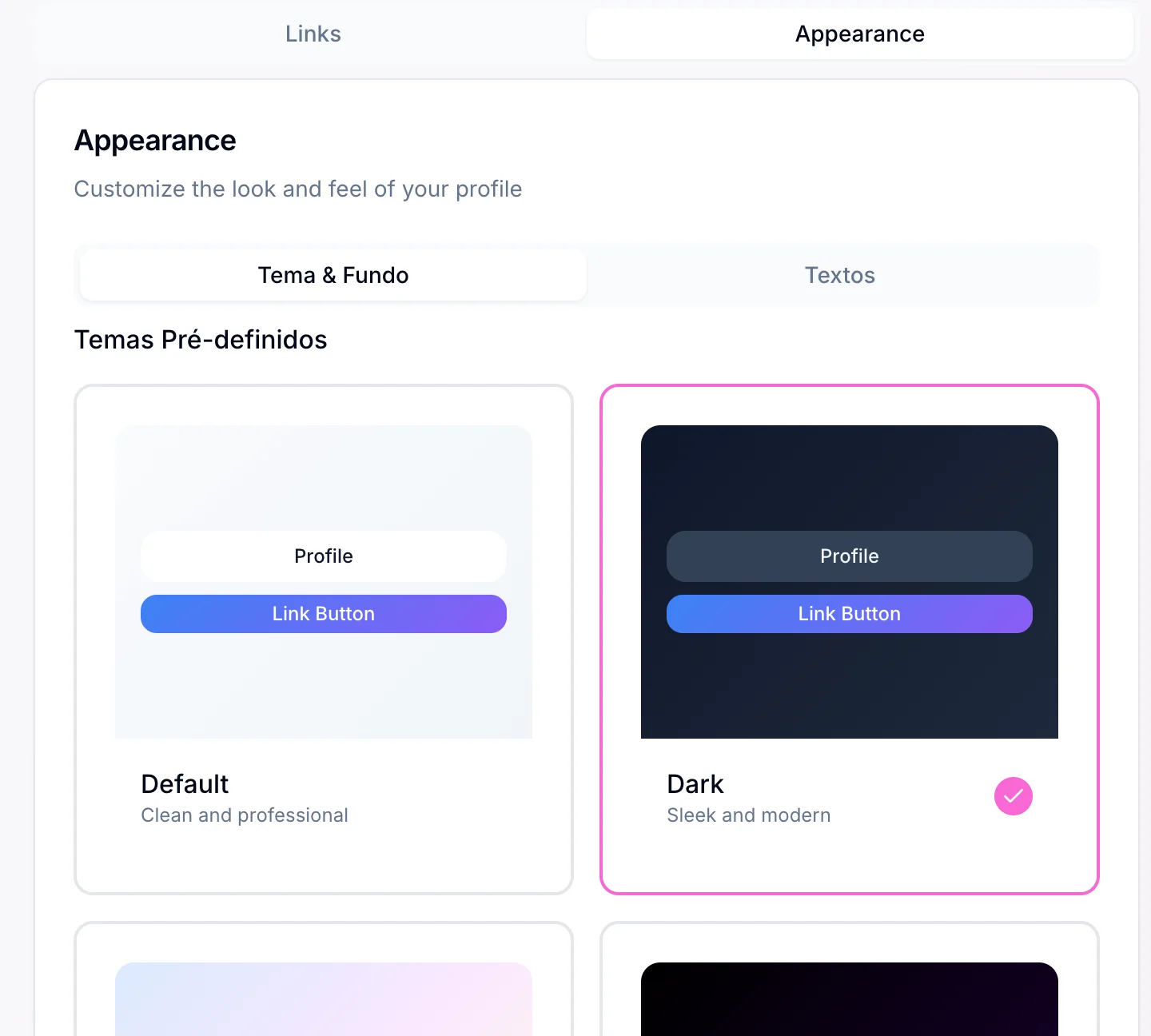
2Choose a theme
Under Theme & Background, click a ready-made theme, such as Default or Dark.
3Use your own background
Under Background Type, choose Image and upload the file.
4Adjust the texts
In the Texts tab, choose the font and colors.
5Check on your phone
Open the Preview and check the contrast on a small screen.
Highlight a single button
1Open the Links tab
Find the link you want to highlight.
2Click Configure
Change that button's background color, text color, font and shape. The others stay the same.
Visual consistency
Use few colors and a readable font. One highlighted button works better than several competing for attention.
How to know it worked
- The Preview shows the theme and texts you chose.
If something doesn't go as expected
- Check that every address starts with https://.
- Save the change that did not show up again.
- Open the public page in a private window.
Related guides
BestLinksComplete guide: create and customize your BestLinksBestLinksAdding and organizing your links
Was this page helpful?
Your answer helps us improve this guide.

Still have questions?
Contact support. Have your account email at hand.