
How to restore an earlier version
The editor saves automatically. If something changed by mistake, go back with History.

Quick answerYou do not need to save: the editor records every change and shows “All changes saved”. To go back, open the slide, click History at the top and restore the version. History is per slide and restoring does not use credits.
Step by step
1Open the post in the editor
In the Library, open the post and click Edit Design.
2Go to the slide
Open the slide you want to restore. Each slide has its own history.
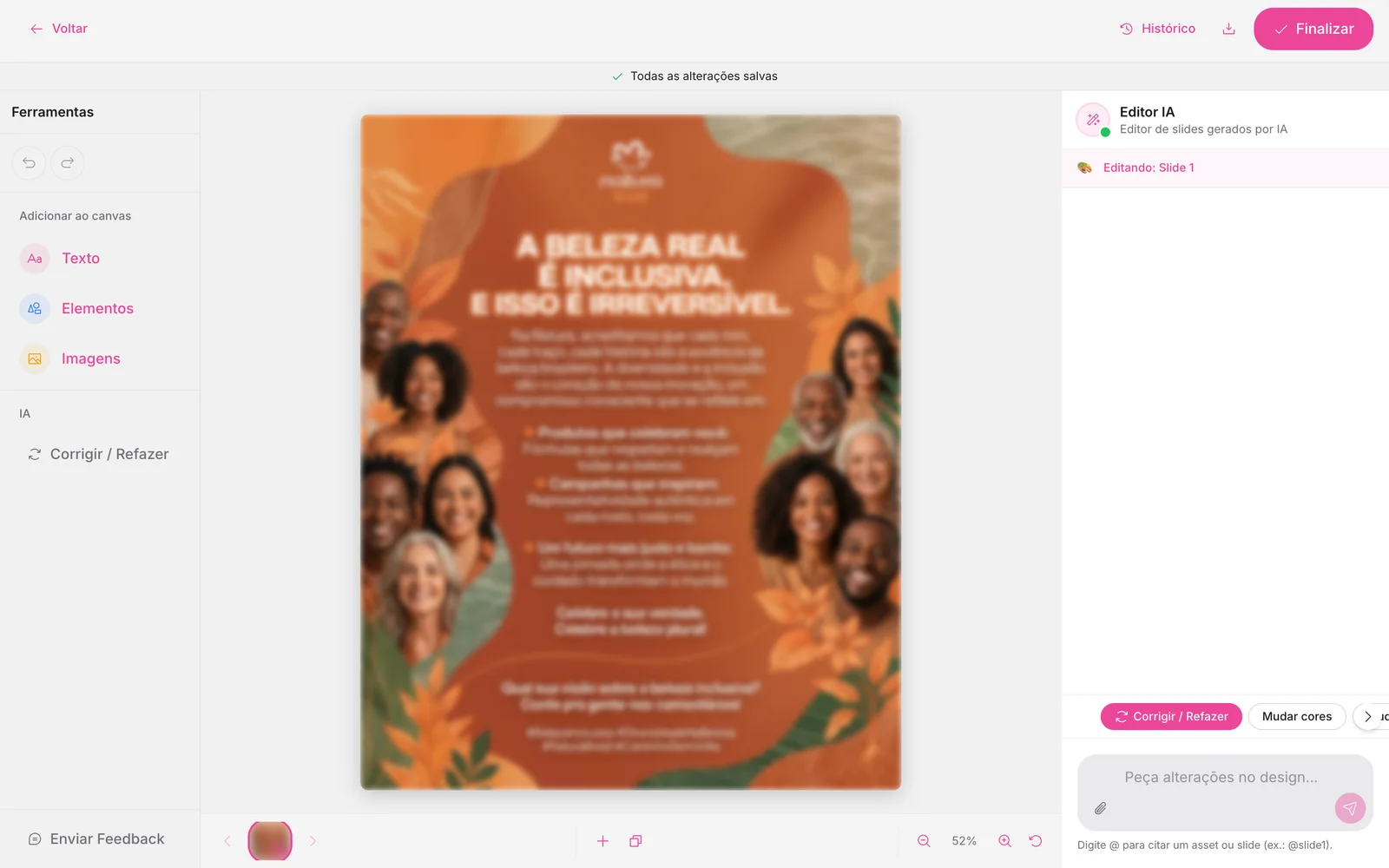
3Click History
The button is at the top, next to Export. It opens the Slide history window.
4Restore the version
Each version shows a thumbnail and a date. Click Restore on the one you want. To see older versions, use Load earlier versions.
No cost
Restoring a version does not use credits.
If the change does not show up
- Refresh the page and open the post again from the Library.
- Avoid editing the same post in two tabs at once.
- Use a stable connection.
- If it continues, contact support saying which post and on which device.
How to know it worked
- “Version restored” shows and the slide looks the way it did before.
Related guides
Was this page helpful?
Your answer helps us improve this guide.

Still have questions?
Contact support. Have your account email at hand.