
Getting to know the design editor
Adjust texts, images and elements by hand or ask the AI Editor for the change.

Quick answerOpen the post in the Library and click Edit Design. The tools are on the left; on the right is the AI Editor chat. The editor saves automatically. When you are done, click Finish.
The editor areas
- Left: Text, Elements, Images and Fix / Redo.
- Center: the post, slide by slide.
- Right: the AI Editor chat. Ask for design changes and type @ to mention an asset or slide.
- Chat shortcuts: Change colors, Change background, Add element and Improve layout.
- Top: History, free edits counter, Export and Finish.
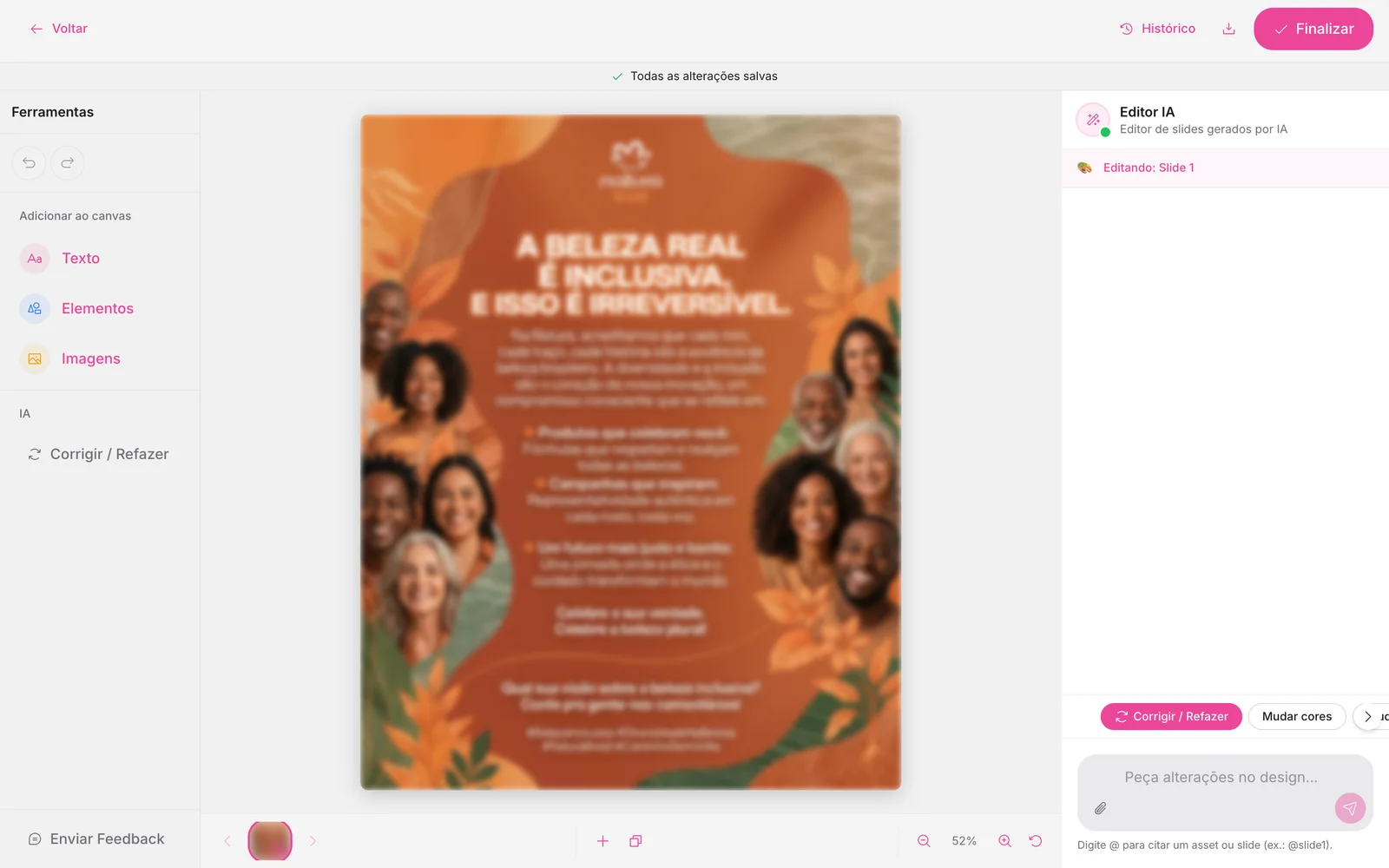
How to open the editor
1Open the Library
In the side menu, click Library and open the post.
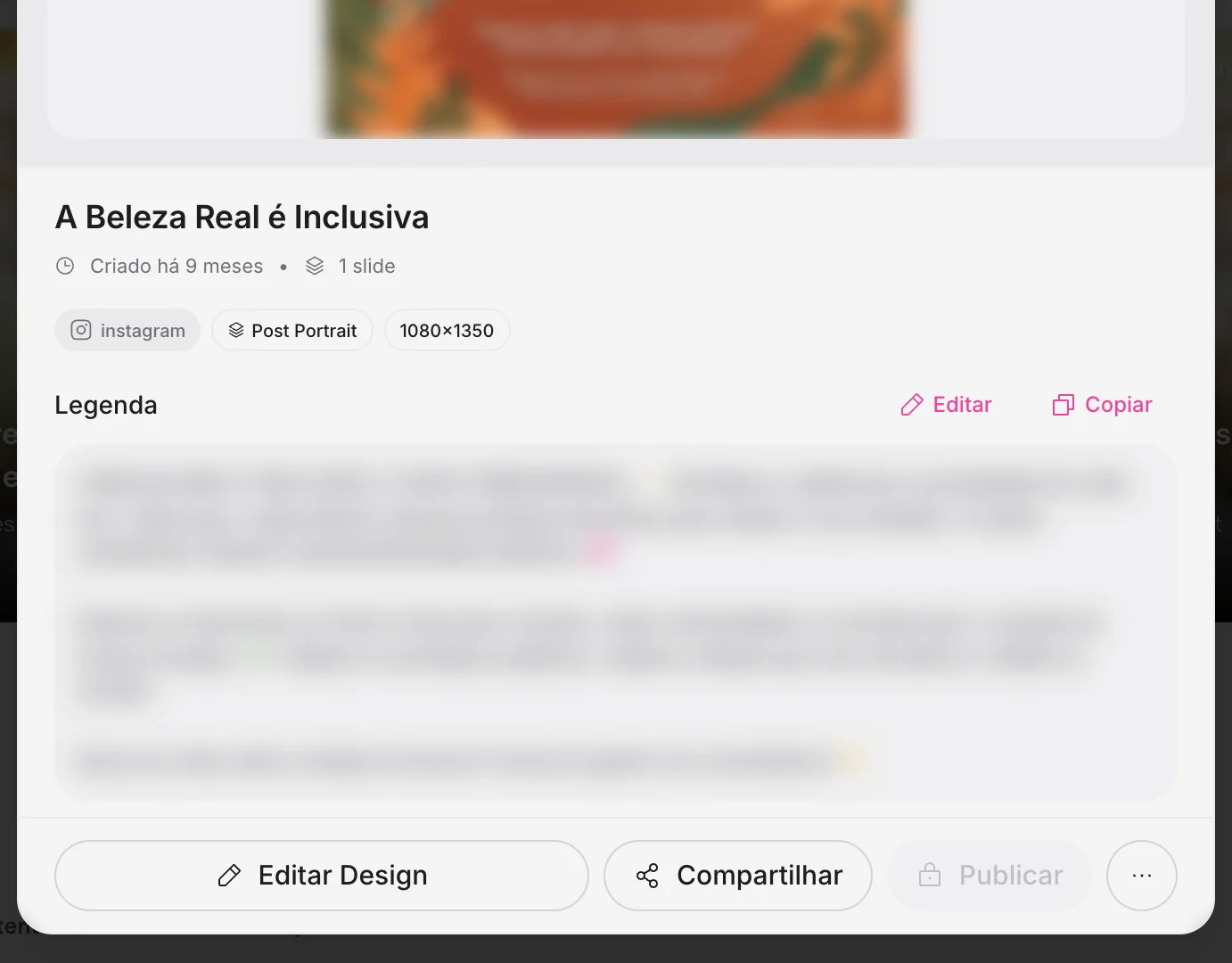
2Click Edit Design
The post opens in the editor.
3Make your changes
Click a text or element to change it, or ask the AI Editor.
4Finish
Click Finish to publish or schedule.
Free edits
Each post comes with free AI Editor edits: 6 on the Pro plan and 12 on Max. The counter is at the top.
How to know it worked
- “All changes saved” shows at the top.
If something doesn't go as expected
- Refresh the page and open the post again from the Library.
- Avoid editing the same post in two tabs.
- Use History to go back to an earlier version.
Related guides
EditorHow to change the font of a postEditorHow to restore an earlier versionImagesReplacing the image in a finished post
Was this page helpful?
Your answer helps us improve this guide.

Still have questions?
Contact support. Have your account email at hand.