
Creating your first video with AI
Write a sentence, adjust what you want and generate the video.

Quick answerIn Create → Video Posts, describe the video, check the format, length and voice and click Generate video. When it's ready, choose to schedule, publish or download.
Before you start
- Write the main message in one sentence.
- Know where the video will be published.
- Set aside names and data that must come out exactly right.
Step by step
1Open Video Posts
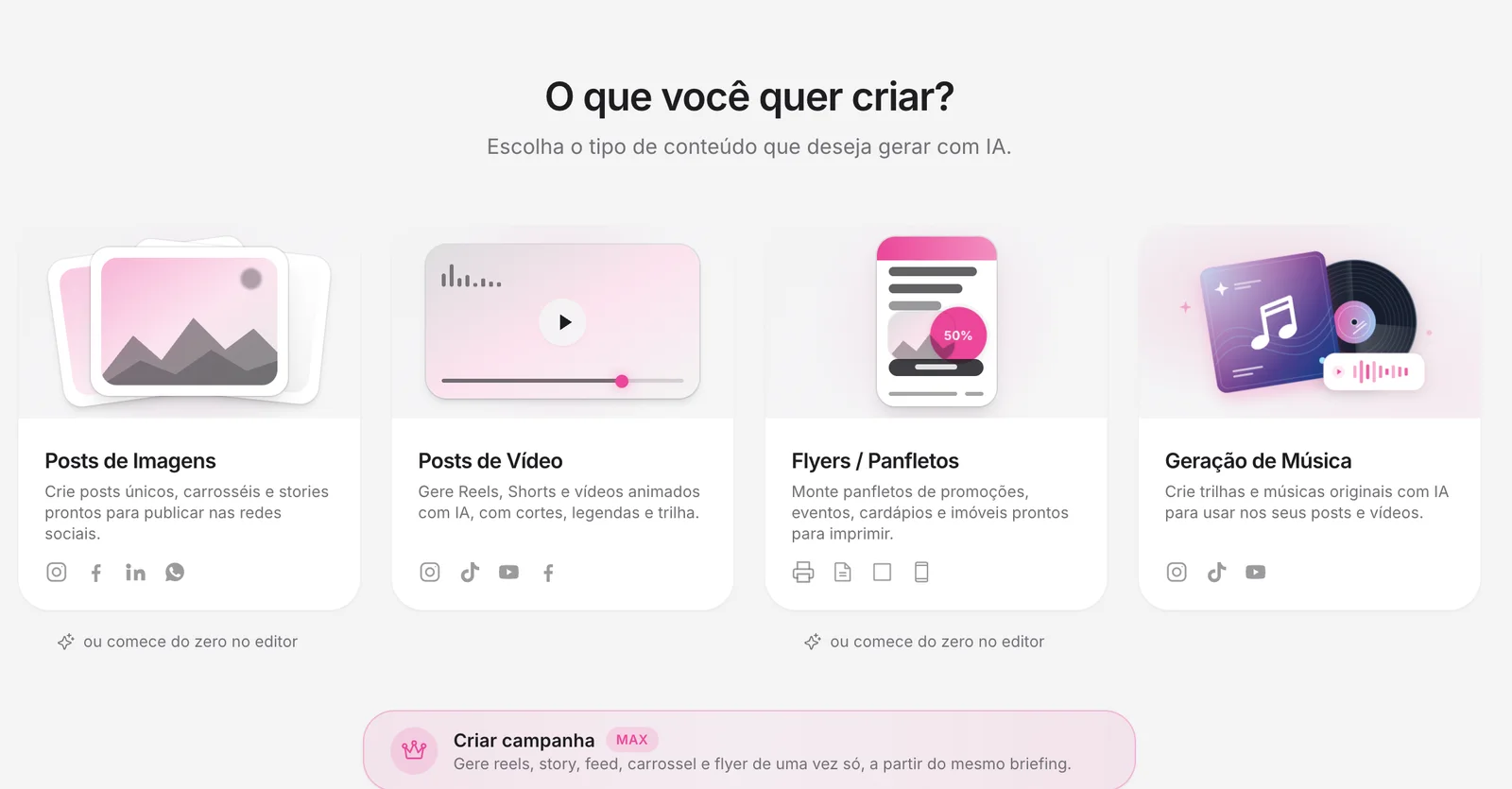
In the side menu, click Create and choose Video Posts.
2Describe the video
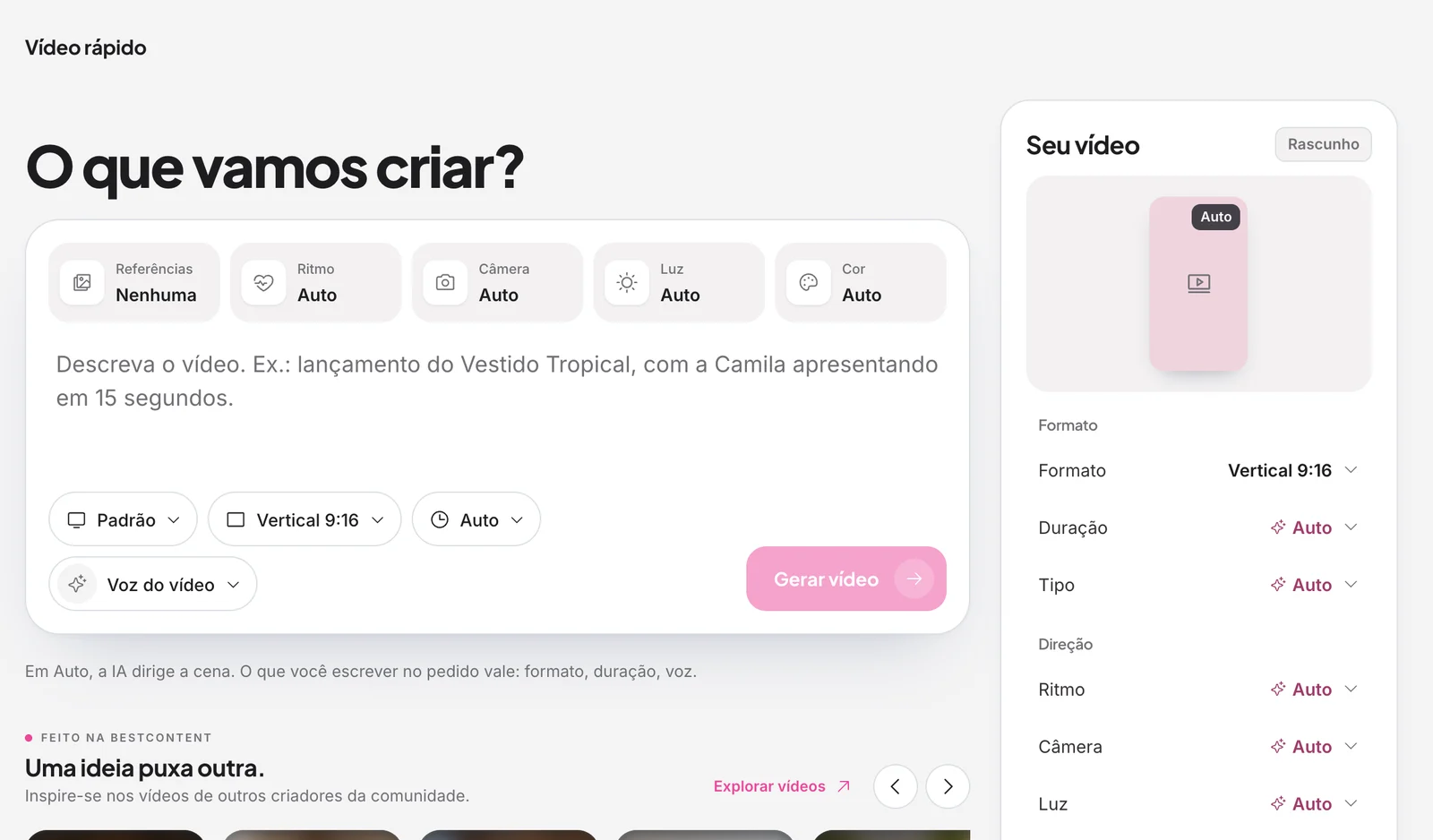
Say the topic, who appears and the length. E.g.: “launch of the tropical dress, presented by Camila, in 15 seconds”.
3Check format and length
Below the field, choose the format (such as Vertical 9:16) and the length.
4Choose the voice
Under Video voice, choose a voice or your own.
See the guide: Video with your voice and Photos to Reels5Generate the video
Click Generate video. You can leave the screen: the video keeps being made and stays in the Library.
When the video is ready
- Schedule or publish: sends the video to your connected networks.
- Download video: saves the file to your device.
- New video: starts another one from scratch.
Review before publishing
Check names, captions that are readable on a small screen, and whether the ending shows the action you want.
How to know it worked
- The video plays to the end in the preview.
- Important texts and elements are readable.
If something doesn't go as expected
- Make the description more specific.
- Set the controls back to Auto and generate again.
- Look for the video in the Library if you left the screen.
.avif)
Related guides
AI videosGetting to know Quick VideoAI videosVideo with your voice and Photos to ReelsSocial 2.0How to save and download the posts you created
Was this page helpful?
Your answer helps us improve this guide.

Still have questions?
Contact support. Have your account email at hand.