
Creating your first post with AI
Go from a simple idea to a finished post, with a caption and your brand identity.
Before you start
- The right brand is selected at the top of the side menu.
- You have AI credits available (see My subscription).
- You already know the goal and the audience of the post.
Step by step
1Open the Create screen
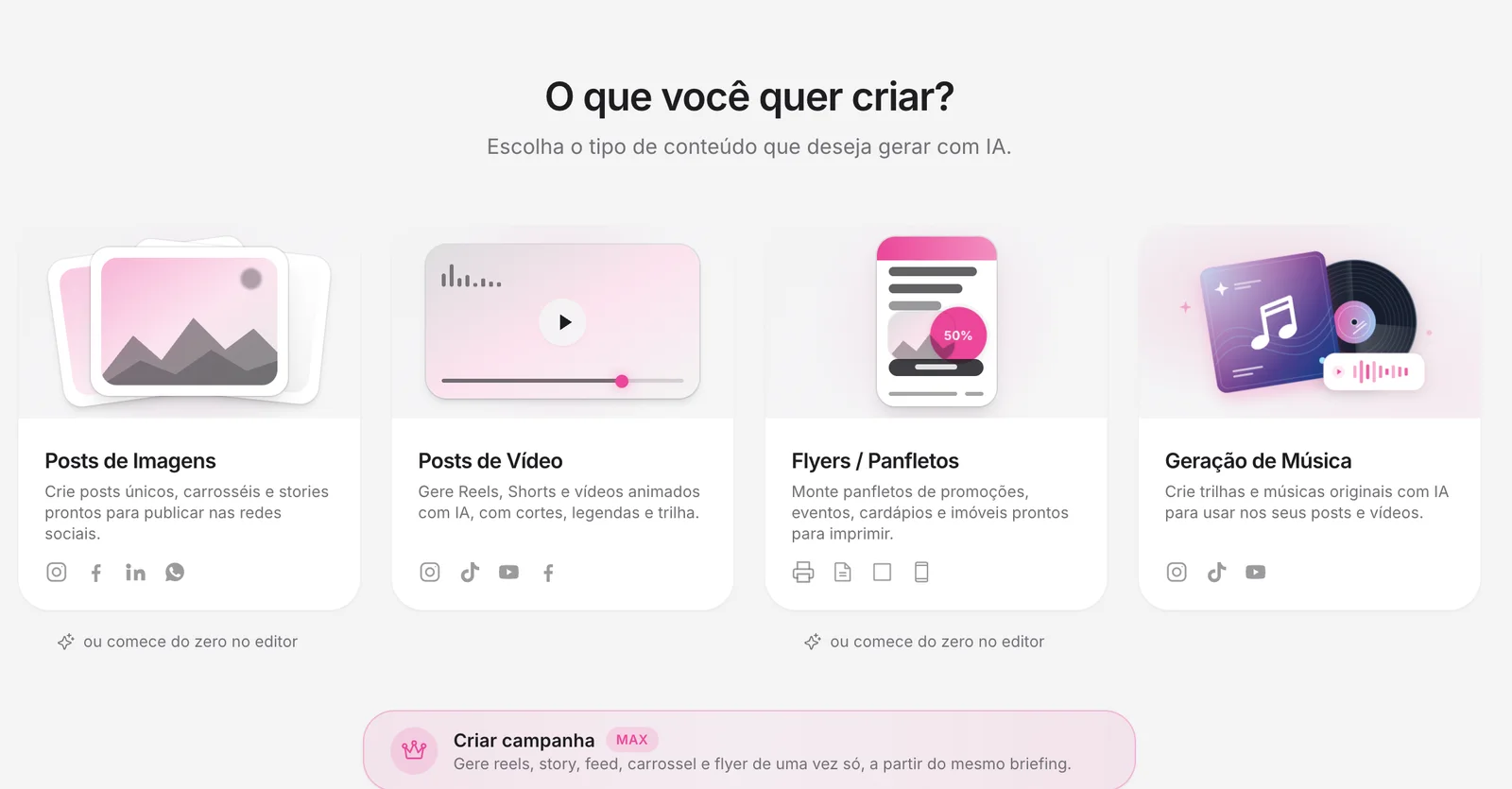
In the side menu, click Create. Choose Image Posts for posts, carousels and stories.
2Choose the image type
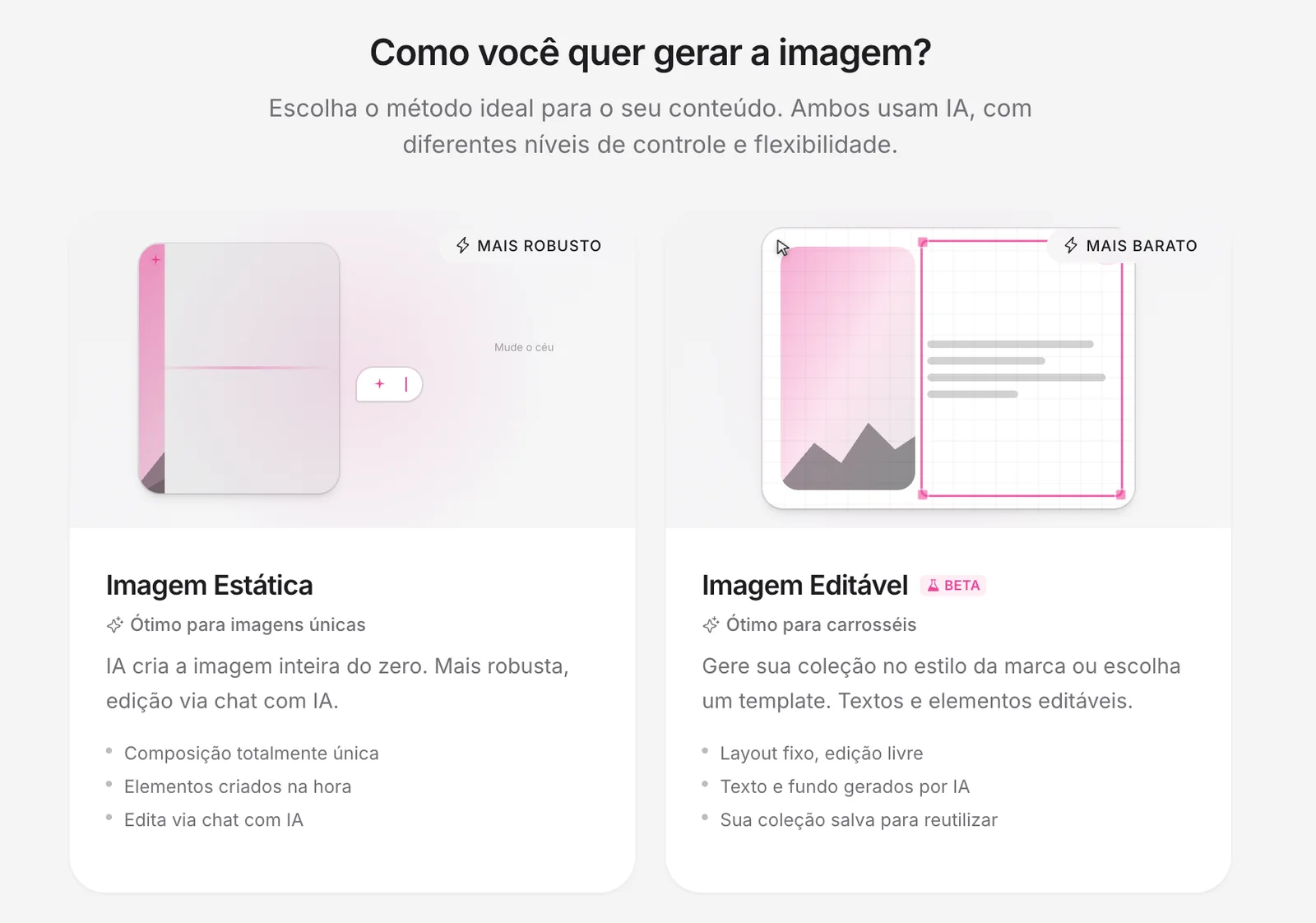
Static Image: the AI creates the whole design and you edit it by chatting with it. Editable Image (Beta): the design comes in a template, with texts and elements you change by hand.
3Choose the format
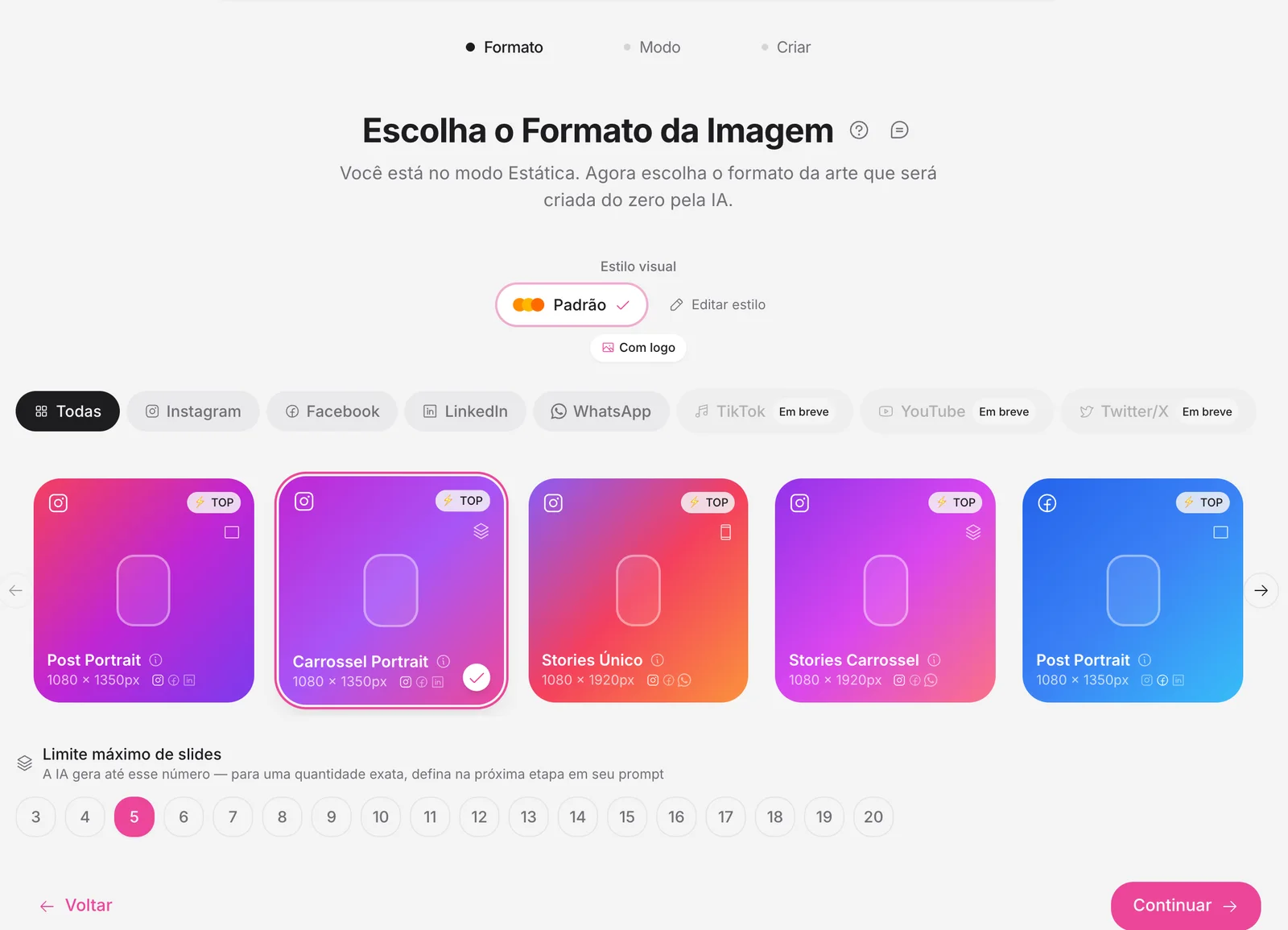
Select the format and the network, such as Portrait Carousel for Instagram. For carousels, set the slide limit, from 3 to 20.
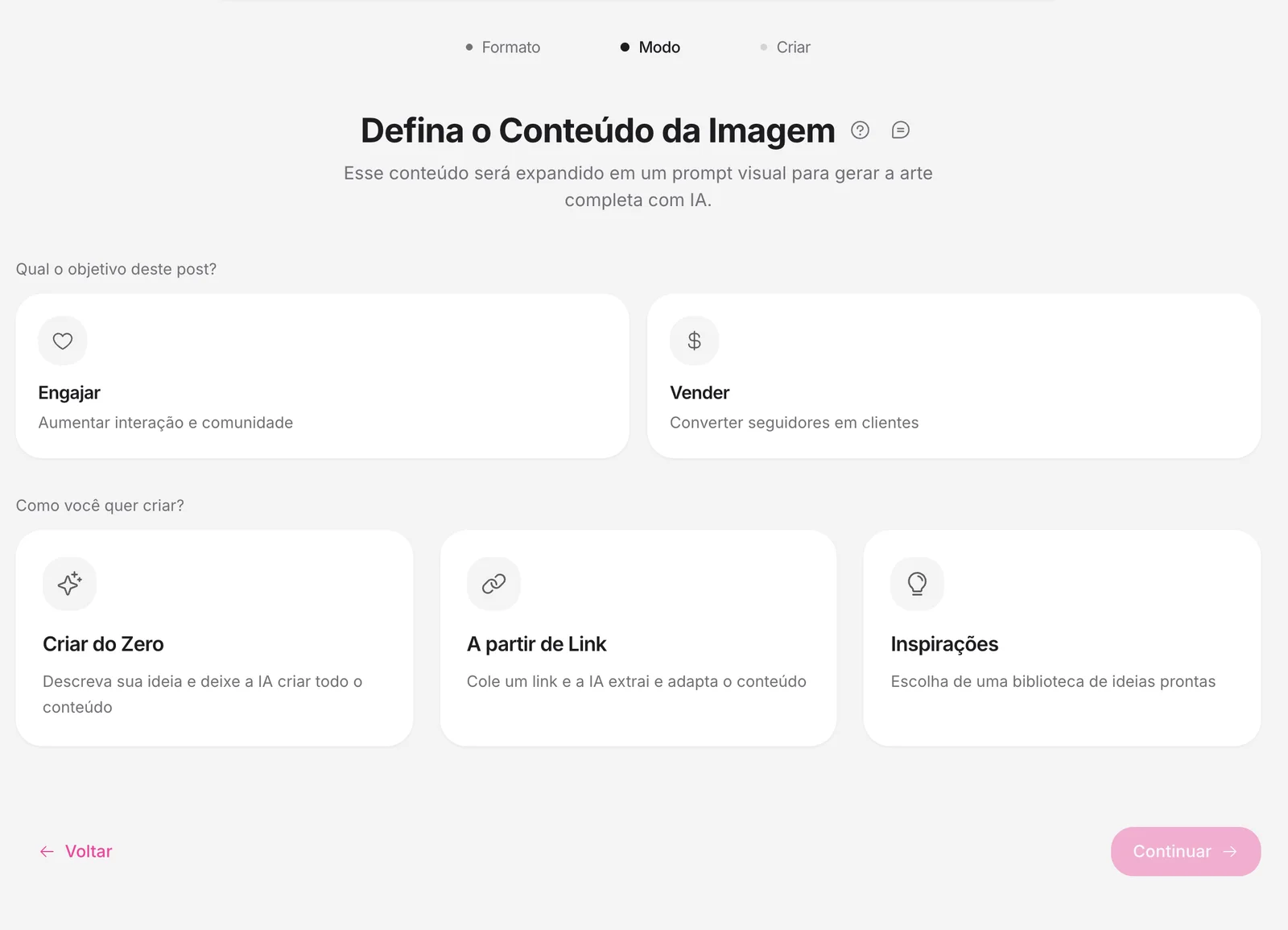
4Set the goal
Choose Engage or Sell and how you want to start: from scratch, from a link or from a ready-made inspiration.
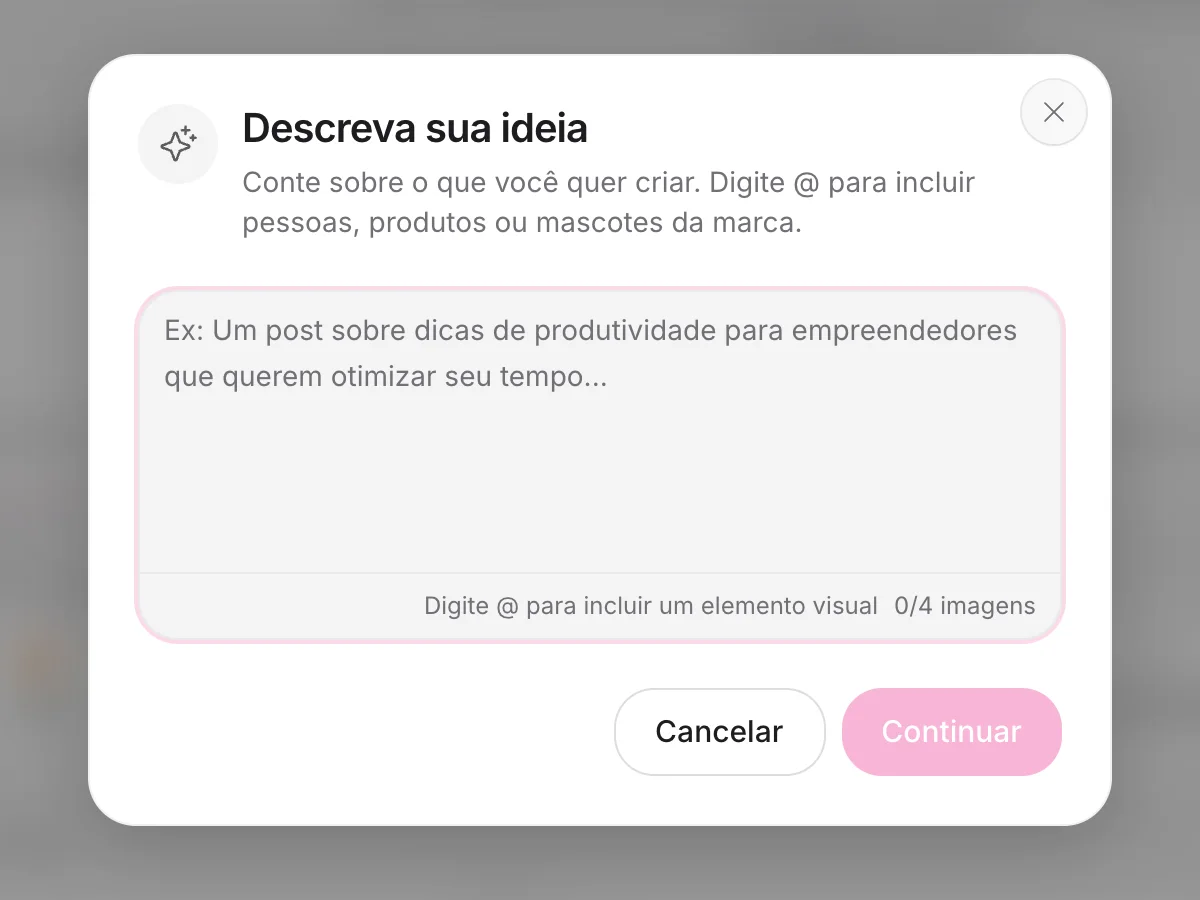
5Describe your idea
Tell the AI the topic, the audience and the call to action. You can attach up to 4 images and type @ to include people, products or mascots from your brand. Then click Continue.
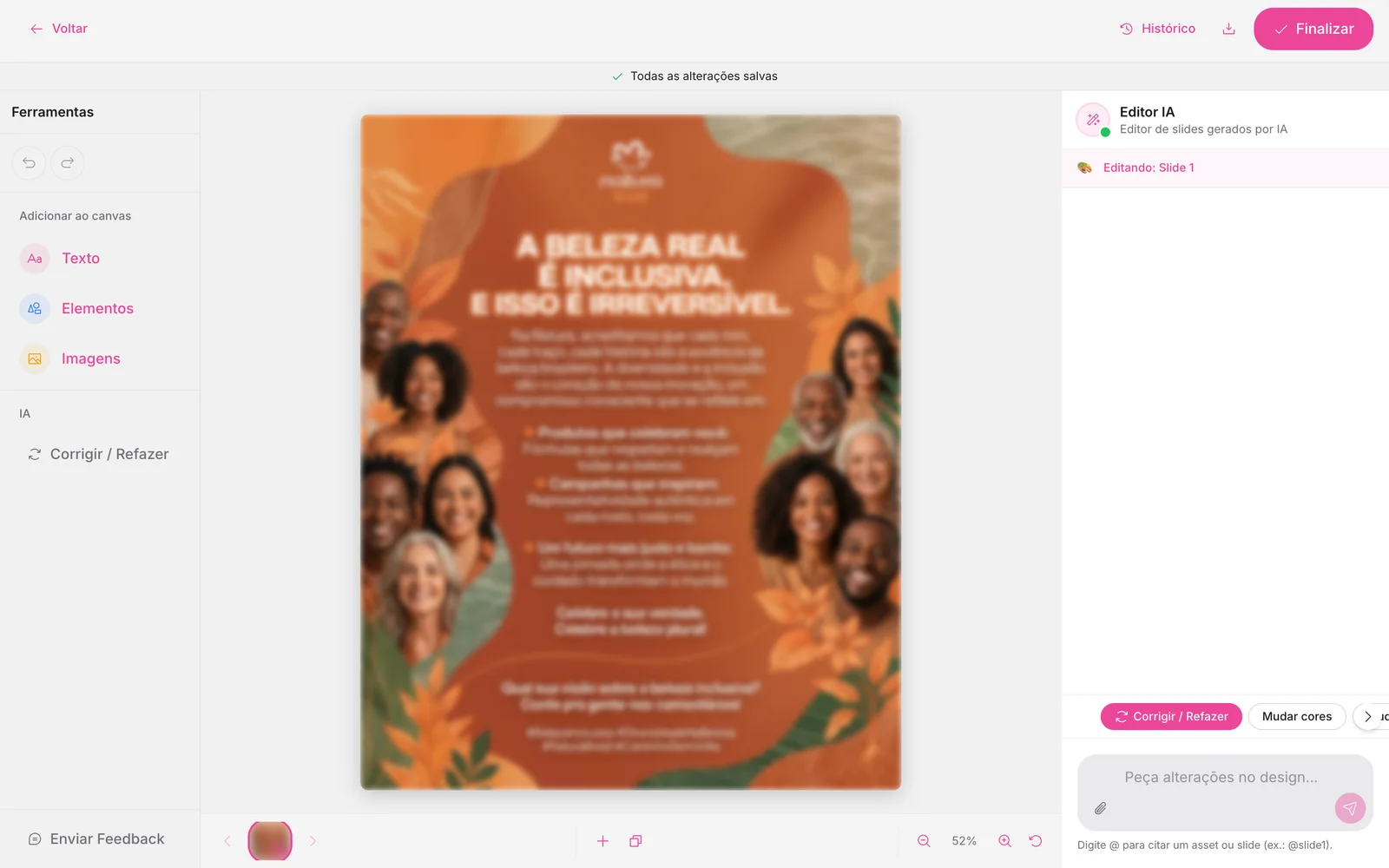
6Adjust and finish
When the post is ready, adjust anything in the editor or ask the AI Editor. Changes save automatically. Click Finish to publish or schedule.
Instead of “promotion post”, say the product, the benefit, the audience, the call to action and the style you want. The more concrete, the better the first result.
How to know it worked
- The post shows up in the Library, in the Drafts tab.
- It opens in the editor when you click Edit Design.
If something doesn't go as expected
- Simplify the description and generate again.
- Check that the right brand and format are selected.
- In the editor, use Fix / Redo to ask for another version of a slide.
.avif)
Related guides
Your answer helps us improve this guide.

Contact support. Have your account email at hand.