Uploading your images before generating the post
Attach your own photos for the AI to use when creating the post.

Quick answerIn the Describe your idea window, attach up to 4 images, finish the description and click Continue.
Before you start
- Use sharp, well-lit photos.
- Avoid very long file names.
Step by step
1Start a post
In Create → Image Posts, choose the type, the format and the goal.
2Attach the images
In the Describe your idea window, use the paperclip to attach up to 4 images.
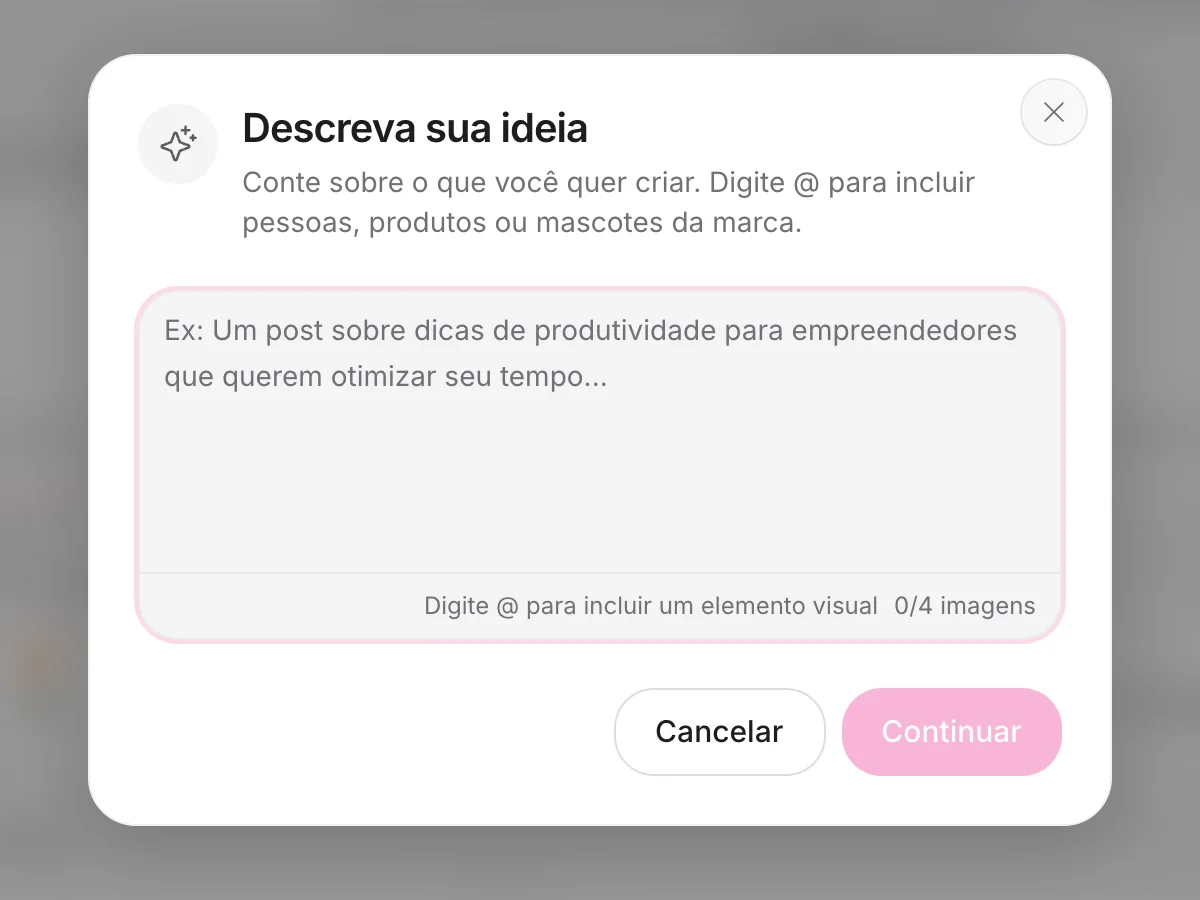
3Describe
Say how the AI should use the photos.
4Generate
Check the thumbnails and click Continue.
Brand products and people
Photos you use all the time (product, mascot, team) can live in your brand identity. Then just type @ to call them.
How to know it worked
- The thumbnails show in the window before generating.
If something doesn't go as expected
- Reduce the file size.
- Convert the image to PNG or JPG.
- Refresh the page and upload one file at a time.

Related guides
ImagesReplacing the image in a finished postImagesAccessing the image libraryBrandCreating your brand on the platform
Was this page helpful?
Your answer helps us improve this guide.

Still have questions?
Contact support. Have your account email at hand.